
Help
Locate on Map Powered by Google Maps™
How can Google Maps™ be used in DNBi?
We have combined the powerful, user-friendly mapping technology of Google Map™ s with D&B’s DUNSRight™ information. You will be able to:
- View the location of a company and its corporate family
- View the location of other addresses associated with the company such as the application and account addresses
- Get detailed directions
How can I access a map in the DNBi application?
You can access a map from the Locate on Map link in the header of Live Reports, Applications or Accounts. Google Maps™ can also be accessed from the History & Operations tab. You can click on the “Larger View” link and will be taken to the full-fledged map view with the various display options.
How can I navigate in the Google Maps™ feature?
You can navigate (move your view) in two dimensions in any map. To pan (move the map), do one of the following
- Click and drag the map
- Press the up arrow on your keyboard to move north
- Press the down arrow on your keyboard to move south
- Press the right arrow on your keyboard to move east
- Press the left arrow on your keyboard to move west
Additionally, you can zoom in or out pressing the + or - keys. Move the cursor over a location and use the mouse scroll button to zoom in or out on that location. To center and zoom in on a location, double click the location.
How do I use the navigation controls for the Google Maps™ feature?
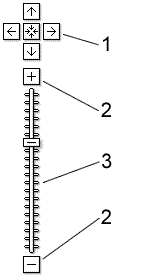
Navigation controls include:
- Arrows - Click the appropriate arrow buttons to move the view north, south, east or west. Click Center button to return to your original view.
- Zoom - Click + to zoom in on the center of the map. Click - to zoom out
- Zoom slider - Drag the zoom slider up or down to zoom in or out incrementally.
What are the different views available as part of the Google Maps™ feature?
- Map - This shows a map with a traditional depiction of roads, parks, borders, bodies of water and more.
- Satellite - This shows aerial imagery.
- Hybrid - This shows aerial imagery and road information.
How do I view maps of other addresses that may be associated with a company?
The larger view link provides you with the option to view the various company addresses – D&B address, Application address, Account address & Corporate Linkage addresses. You can click on any of these addresses and view the corresponding map.
Are there maps available in all countries?
Full functionality of Google Maps™ is currently available in these countries: Australia, Canada, China, France, Germany, Italy, Netherlands, Spain, the U.K., and the U.S.
Japan offers full service with the exception of driving directions. Some other countries, such as China, also offer Google Map™ s with limited functionality.
In addition, Google Maps™ offers map data in these countries: Andorra, Austria, Belgium, Brazil, Czech Republic, Denmark, Finland, Gibraltar, Greece, Hungary, Ireland, Liechtenstein, Luxembourg, Monaco, New Zealand, Norway, Poland, Portugal, Russia (Moscow only), San Marino, Singapore, Slovakia, South Africa, Sweden, Switzerland, Turkey (Istanbul only).
Where does Google Maps™ get its information?
The map data found in Google Maps™ is sourced largely from NAVTEQ and TeleAtlas. Similarly, the imagery found in "Satellite" mode is sourced predominantly from DigitalGlobe and MDA Federal. The company information is taken from the DNBi database.
How old is the satellite map data on Google Maps™?
Google Maps™ acquires the best imagery available, most of which is approximately one to three years old. In some instances, the exact location of the company may be different than the information that is returned.